
How I Built My Exuberant Home Cybersecurity Lab (Step-by-Step) 🔧.
A home cybersecurity lab (sometimes called a home ethical hacking lab) is the safest way to practice hacking skills without putting your personal network at risk. Instead of experimenting on your daily devices, you isolate everything into a controlled environment.
This post shows you how to build a home cybersecurity lab that is budget-friendly, realistic, and future-proof.
This is Post 1 in my Home Lab Series. Later posts will go deeper into:
- Configuring my Cudy WR3000 VPN router as a ProtonVPN router (WireGuard, killswitch, per-device policies). The best router for ethical hacking lab that don’t cost a lot.
- How to set up a TP-Link router for lab, a dedicated victim router and a Windows 10 victim machine.
- Running my first safe pentest (Kali Linux → Windows 10).
- Using a Wi-Fi adapter with monitor mode for wireless pentesting in attacker devices.
Key Takeaways
- 🔐 How to build a home cybersecurity lab? The setup lets you practice without risking your main network.
- 💻 You only need a few budget components: a VPN router, a TP-Link victim router, and an old laptop.
- ⚡ Windows 10 is more realistic than Windows 7 — it reflects real-world targets better.
- 🔧 Simple upgrades like a 225 GB SSD and 4 GB RAM make old laptops excellent victims.
- 🚀 This is a cheap cybersecurity lab setup under $150 that you can expand later.
“The best way to learn cybersecurity is by building your own lab where mistakes don’t matter.”
I personally admire Sir Stephen Fry — I enjoy listening to his thoughtful views, and I’m often inspired by how he looks at technology and society.

Why a Home Cybersecurity (Ethical Hacking) Lab Matters🧠
Why go through the effort of building a home cybersecurity lab? Because it gives you something no online course can: hands-on practice in a safe, realistic environment. Think of it as your home ethical hackers lab — a realistic but isolated environment where breaking things is part of the process.
This lab is your own cybersecurity playground. Some call it a home ethical hacking lab, others an ethical hacking lab setup. I call it freedom to break, fix, and learn without consequences.
- 1. Practice without risk 🛡️Running scans or exploits on your home network can break things — trust me, I once knocked my smart TV offline for a day just by testing a simple nmap scan. In a lab, mistakes are part of the process, and nothing important is at stake.
- 2. Realistic environment 💻It’s tempting to only use VMs, but real attackers don’t limit themselves to clean virtual machines. A dedicated victim laptop with Windows 10 (unpatched) is far closer to what exists in the wild. This makes your tests and exploits feel authentic, not staged.
- 3. Learn networking 🌐Reading about subnets and routing is one thing — configuring them yourself is another. By splitting your home lab into multiple subnets (home, attack, victim), you see how data flows, how VPN tunnels behave, and how firewalls enforce isolation. This practical knowledge sticks far better than theory.
In short: this lab is your own cybersecurity playground. Some call it a home ethical hacking lab, others an ethical hacking lab setup. I call it freedom to break, fix, and learn without consequences.
One thing beginners underestimate is how quickly small mistakes compound when you practice on your real network. A single misconfigured scan, an exposed service, or a routing error can break connectivity for hours. In a home cybersecurity lab, those mistakes become lessons instead of disasters.
This is also where confidence comes from. When you build the lab yourself, you understand every cable, subnet, and device. That understanding matters far more than memorizing commands. Tools change. Network fundamentals don’t.
Over time, this lab becomes more than a practice environment. It becomes a reference. When something behaves strangely in a real situation, you have a mental model to fall back on because you’ve already seen similar behavior in your own setup.
What You Need to Build a Home Cybersecurity Lab (budget-friendly) 🧰
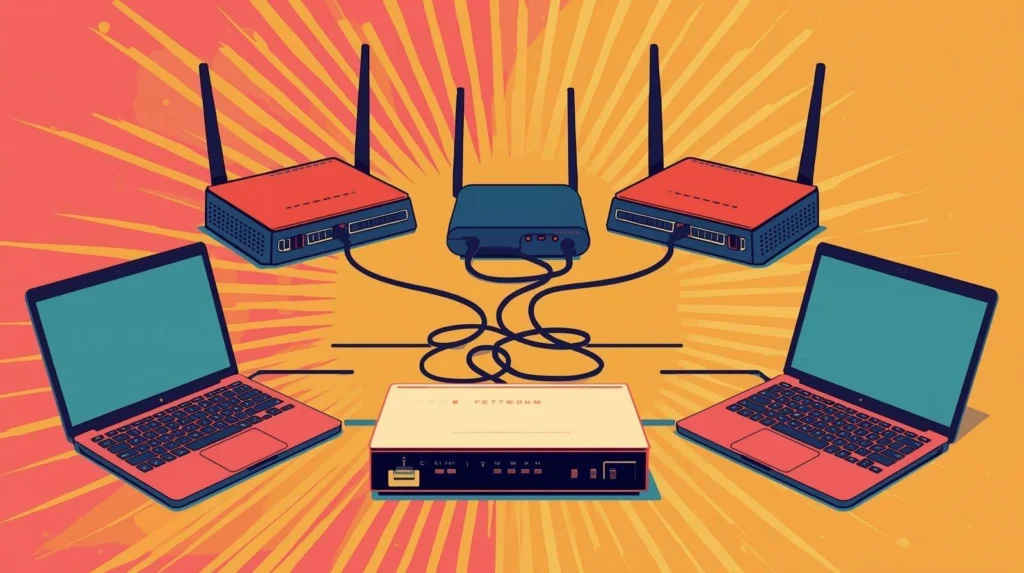
Here’s the exact gear I used. You don’t need high-end equipment — I chose affordable, available devices that get the job done.
The reason this cheap cybersecurity lab setup under $150 is realistic is simple: realism does not come from expensive gear. It comes from separation, misconfiguration, and recovery. Cheap consumer routers behave very similarly to what you’ll find in small offices and home networks.
Second-hand hardware is not a compromise here. Older laptops with Windows 10 are extremely common in the real world. They often run outdated drivers, carry legacy software, and lack proper hardening. That makes them ideal learning targets without needing artificial vulnerability packs.
If you are forced to choose where to spend money, prioritize stability over speed. A stable router and a responsive victim machine matter more than high throughput. Slow labs frustrate learners. Stable labs teach habits.
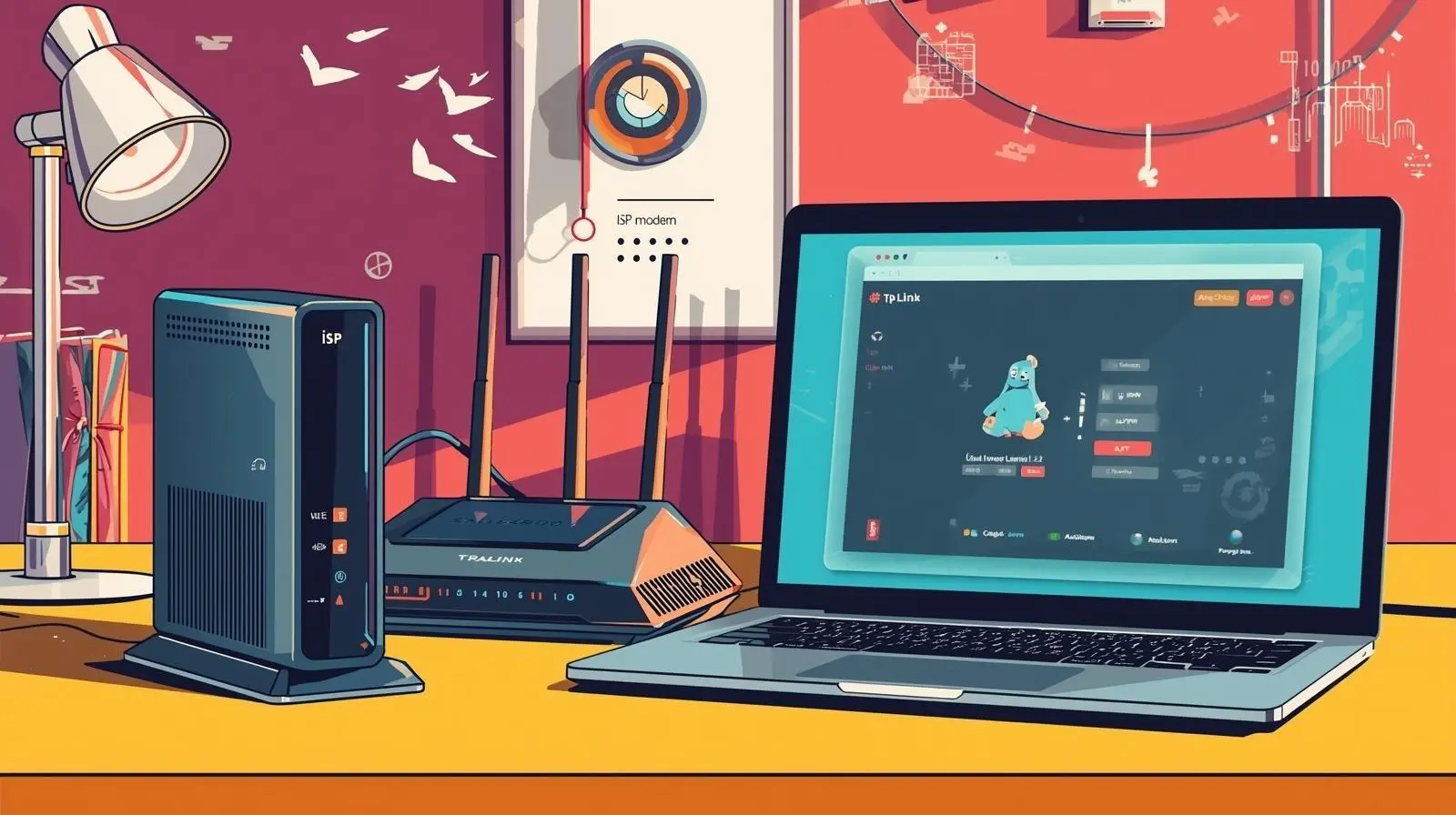
- ISP modem/router (your provider’s default box, any brand works worldwide)
- Attack Router: Cudy router WR3000 AX3000 Wi-Fi 6 Router
- Victim Router: TP-Link Archer AX18 (AX1500 Wi-Fi 6 Router)
- Host laptop: used daily, connected to the ISP router
- Attack Machine: My daily laptop running a Kali Linux VM for beginners (with ProtonVPN WireGuard dock buttons/scripts)
- Victim Machine: One old laptop with Windows 10 (fresh install, no updates, valid license key required)
💡 Tip: Old laptops often come with slow hard drives (HDD) and little RAM. If you want smoother performance, consider a cheap upgrade: replacing the HDD with an SSD and adding extra RAM. I did this myself and it made the victim machine much more responsive, without changing the realism of the lab setup.
⚠️ Note: Some people suggest dual-booting Windows 7 as a victim OS or even installing Metasploit as a separate system. In reality, Windows 7 is outdated and too easy to exploit, which makes it less useful for practice. Windows 10 is much more realistic. Metasploit itself runs inside Kali Linux, not as a separate OS.
Extras:
A few Ethernet cables — make sure at least one is long enough to reach from your main router to your lab setup. I personally needed a 5-meter cable, which was inexpensive but essential.
USB sticks for recovery images and configs
Windows 10 license key
Wi-Fi Network Adapter with Monitor Mode — essential for wireless pentesting. I’ll cover this in detail in a later post.
Affiliate Disclosure: This website participates in the Amazon Associates Program and may earn a commission from qualifying purchases at no extra cost to you.
Kali Linux VM for beginners (practical baseline) 🐉
A Kali Linux VM for beginners is ideal because you can snapshot, break things, and roll back fast. To keep it usable, set it up with a practical baseline instead of default VM settings.
- CPU: 2 cores is enough to start, 4 cores feels smoother for heavier tools
- RAM: 4 GB minimum, 6–8 GB recommended if your host allows it
- Disk: 40–60 GB so you have room for wordlists, captures, and updates
- Snapshots: create a clean snapshot right after setup so you can recover quickly
- Networking: start with NAT if you are new, use bridged only when you fully understand routing in your lab
A Kali Linux VM for beginners also teaches discipline. Because you can snapshot and revert, you start thinking in experiments instead of permanent changes. That mindset is essential in real security work, where every test should be controlled and reversible.
Another advantage of a VM is separation between tools and identity. Your daily system stays clean, while Kali remains a dedicated workspace. Over time, this separation reduces accidental leaks, reused credentials, and sloppy habits that are hard to unlearn later.
As your lab grows, you can duplicate the Kali VM for different purposes: one for exploitation practice, one for network analysis, and one kept clean for demonstrations or documentation. That flexibility is difficult to achieve on bare metal.
💡 A VPN router is essential for a home cybersecurity lab if you want both anonymity and control. In Part 2, I configure the Cudy WR3000 VPN settings and turn it into a WireGuard VPN router.
Network Topology for a Pentesting Lab at Home 🗺️
[ ISP Modem / Gateway ] 192.168.1.1
   |-- LAN1 → [ Cudy WR3000 VPN Router ] 192.168.10.1
   |             |-- Kali Linux VM (192.168.10.100)
   |             |-- Attack Laptop (192.168.10.101)
   |
   |-- LAN2 → [ TP-Link AX18 Victim Router ] 192.168.20.1
   |             |-- Victim Windows 10 (192.168.20.50)
   |
   |-- LAN3 → Normal home devices (phones, TV, work laptop)
Why split it like this? 🤔
- Attack subnet (Cudy WR3000 VPN router): Built for attacker devices and later VPN routing.
- Victim subnet (TP-Link victim router): Machines stay local but separate, simulating vulnerable clients.
- Home subnet (ISP modem): Normal devices stay untouched and safe.
Why Use a VPN Router for Cybersecurity 🛡️
- Central killswitch: If the VPN drops, no traffic leaks from the attack subnet.
- Per-device control: Decide which clients must go through the VPN (and which don’t).
- Privacy: Your testing traffic shows a VPN IP, not your home IP.
- Flexibility: Victims remain reachable locally, lab stays isolated.
How to set up a TP-Link router for lab victims (starter version) 📡
This is a starter version, just to get the lab running. The goal is simple: the victim router should not blend into your normal home network.
- Give it a separate subnet (example: 192.168.20.1)
- Use a unique Wi-Fi name so you never connect accidentally
- Connect only victim devices to it (victim laptop, test VMs, IoT targets)
- Keep admin access local only (no remote management)
This home cybersecurity lab is intentionally simple in its first version. Complexity comes later. The goal now is repeatability: being able to rebuild the lab from scratch without stress or guesswork.
If something breaks, that is not failure. That is signal. Rebuilding teaches more than preserving a fragile setup. Document what you changed, what failed, and how you fixed it. Those notes quickly become more valuable than any checklist.
By the time you reach Part 3 of this series, this lab will feel familiar. That familiarity is what allows you to focus on techniques instead of fighting infrastructure. The lab fades into the background, exactly as it should.
Step-by-Step Setup Recap 🧭
- 1. Buy the hardware (Cudy WR3000 VPN router, TP-Link victim router, Windows 10 license, cables, Wi-Fi adapter with monitor mode).
- 2. Connect Cudy WR3000 VPN router to ISP modem (WAN → LAN).
- 3. TP-Link victim router to ISP modem (WAN → LAN).
- 4. Assign subnets: 192.168.10.x for attack, 192.168.20.x for victims.
- 5. Set up Kali Linux VM with ProtonVPN dock buttons.
- 6. Install Windows 10 on victim laptop, disable updates.
- 7. Test connectivity and confirm separation.
- 8. Prepare Wi-Fi adapter for later wireless pentesting (covered in an upcoming post).
Safety First ⚠️
⚠️ Only attack the devices you set up yourself. Always follow ethical hacking rules. Keep your lab segmented so your normal home devices remain safe.
Coming up next
Configuring the Cudy WR3000 as a ProtonVPN WireGuard Router (Step-by-Step Guide)
In the next article, we’ll configure the Cudy WR3000 as a dedicated ProtonVPN WireGuard router. You’ll learn how to set up the firmware, apply ProtonVPN configuration files, and secure your lab network with fast, reliable VPN routing.
Full Privacy Online – Then we’ll switch gears to focus on full privacy online. From VPN hygiene to locale and browser tweaks, DNS/WebRTC leak fixes, and evidence sanitization — discover how to keep your lab activity as undetectable as possible.